Remove Reels from Instagram on iPhone

How to remove Reels from Instagram on iPhone.Three steps. No jailbreak. No VPN. No extension to fight with.

The short version: install Dull on your iPhone, tap Instagram inside it, log in. Reels are already gone. No setting to flip, no profile to install, no DNS trick. It's an iOS app that runs Instagram inside its own browser and strips the Reels tab before you see it. 7-day free trial.
Download on the App Store start the 7-day trial. no card upfront.

iOS 16+ $3.99/mo or $14.99/yr on-device only

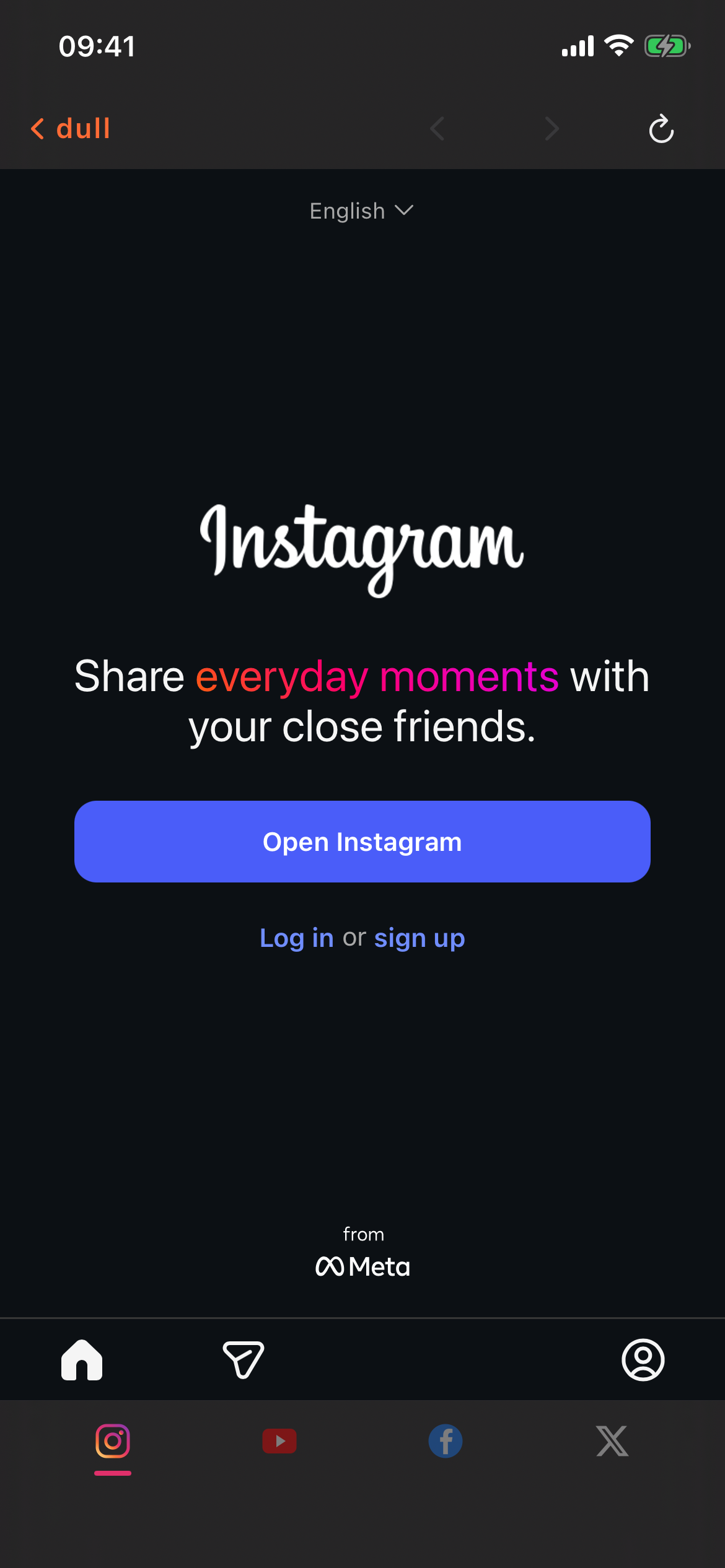
Instagram on iPhone with Reels removed, running inside Dull
Instagram / iPhone
01
Download Dull from the App Store Search 'Dull social media browser' or use the App Store button below. Requires iPhone running iOS 16 or later. 7-day free trial, no card upfront.
02
Open Dull and tap Instagram Dull's home screen is a list of platforms. Tap Instagram. A browser window opens the real Instagram mobile site. Log in with your usual username and password (or Facebook / Apple).
03
That's it — the Reels tab is gone No settings panel, no toggle. The Reels tab at the bottom of Instagram has been removed, along with Reels in feed and the Explore page. Your Feed, Stories, DMs, and Search all still work.
Is there a way to remove Reels from the real Instagram app on iPhone?
No. Instagram doesn't let you turn Reels off inside their app. The Reels tab is hardcoded in the bottom nav. Meta hasn't shipped a setting for it and probably never will — Reels is what keeps you on the app. Dull is a workaround: a separate iOS app that loads Instagram in a browser so the tab can be hidden.
Do I need to jailbreak my iPhone or install a VPN profile?
No. Dull is a regular App Store app. No jailbreak, no sideloading, no configuration profile, no VPN. You install it like any other app and open it.
Will I lose my messages, followers, or saved posts?
No. Dull doesn't touch your Instagram account. You log into the same account through a different interface. Your DMs, followers, saved posts, and tagged photos are all exactly where you left them.
Can I keep the Instagram app installed at the same time?
Yes, but most people delete it from their home screen once Dull is set up — otherwise you just open the old app out of habit and the Reels come back. Nothing stops you from reinstalling it.
Is it free?
7-day free trial with full access. After that, $3.99/mo, $14.99/yr, or $59.99 one-time lifetime. You can cancel during the trial and pay nothing.
I tried to remove Reels on iPhone using Screen Time. Why didn't that work?
Screen Time blocks Instagram entirely once you hit your daily limit. It doesn't selectively remove Reels — it just locks you out of the whole app. Dull does the opposite: the app stays open, but the Reels-shaped parts of it are missing.

People search 'how to remove Reels from Instagram iPhone' because Instagram doesn't have a setting for it and neither does iOS. Screen Time blocks the whole app. Safari blockers don't work inside native apps. Shortcut-based 'block Reels' hacks break the next time Meta pushes an update. Dull is maintained as a browser, not a hack — when Instagram changes its layout, we push a filter update and Reels stay gone.

Remove Reels from Instagram. On your iPhone.

One App Store download. Three steps. Seven-day free trial. If Instagram without Reels doesn't stick, cancel before it charges.

Download on the App Store 7-day free trial · $3.99/mo · $14.99/yr · $59.99 lifetime